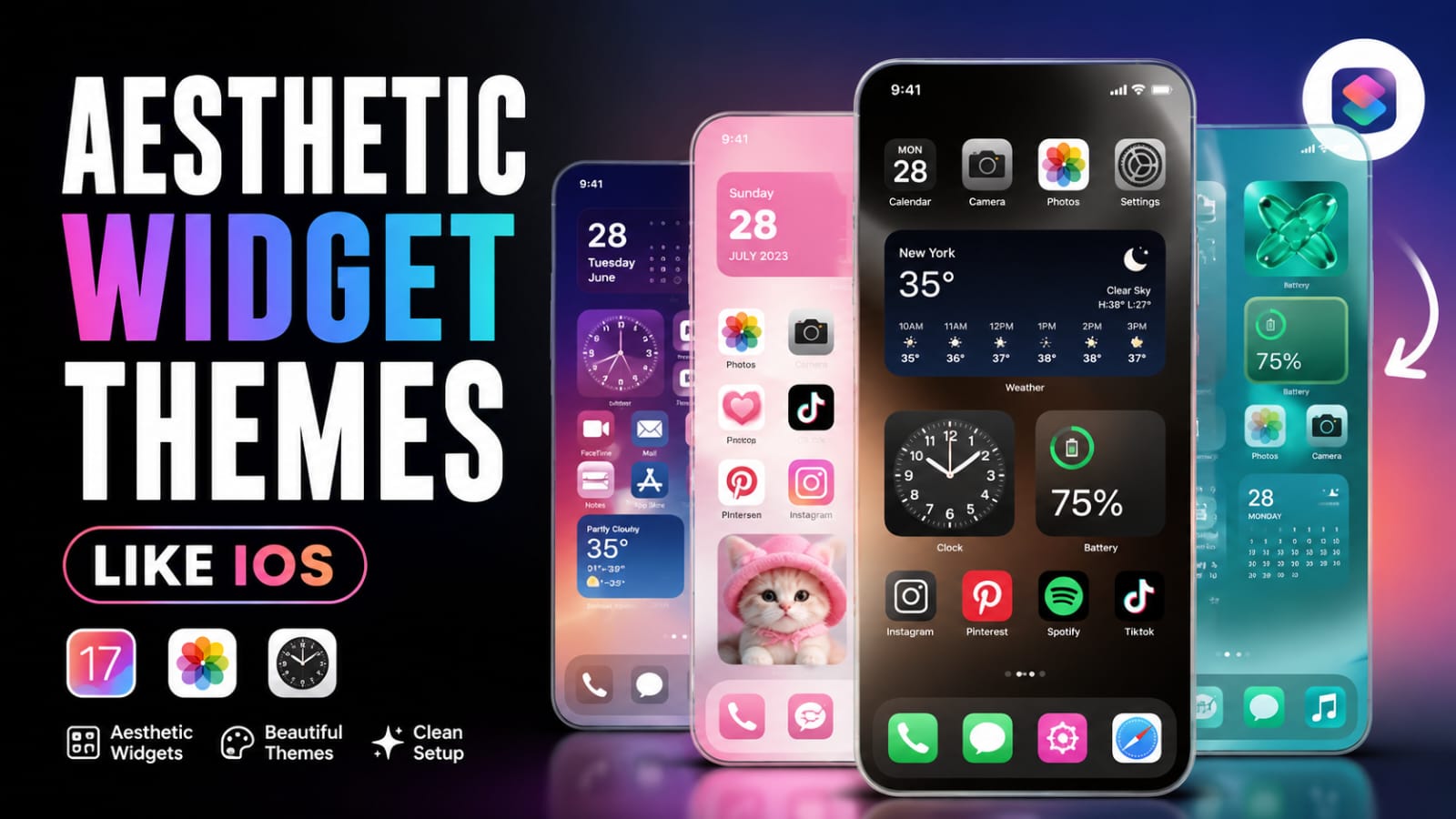
A beautifully customized phone feels more personal every time you unlock it.
Theme App Phone Modification has become one of the easiest ways to refresh your device without buying a new smartphone.
With apps like iWidget, you can combine stylish widgets, premium wallpapers, modern icons, and organized layouts to create a clean iOS-inspired interface. Whether you enjoy minimal designs or colorful setups, this guide explains everything you need to know from installation to advanced customization.
What Is Theme App Phone Modification?
Phone modification focuses on changing the appearance of your device while keeping the operating system unchanged. It includes wallpapers, icon packs, widgets, fonts, and launchers that work together to create a unique experience.
Theme customization has become popular because it lets users personalize their phones according to their style instead of using the default design.
Why do users customize their phones?
Many people enjoy making their devices look premium. Others organize widgets for productivity or create aesthetic home screens inspired by iOS.
Popular customization includes:
- Custom icon packs
- Minimal wallpapers
- Clock widgets
- Calendar widgets
- Weather widgets
- Transparent layouts
How to Create an iOS Theme Using iWidget
iWidget makes it easy to design a polished home screen. It offers customizable widgets that closely resemble Apple’s widget style while remaining flexible enough for Android users.
iWidget setup takes only a few minutes when you have matching wallpapers and icons prepared.
Step one: Install the app
Download iWidget from your preferred app store and allow the required permissions for widgets and storage access.
Step two: Choose matching widgets
Pick widgets with similar colors and rounded corners. A consistent design creates a more professional appearance.
Step three: Apply an icon pack
Use icons with matching colors and shapes. White, black, and pastel icon packs remain popular because they pair well with almost any wallpaper.
Step four: Select a wallpaper
Simple wallpapers help widgets remain readable. Soft gradients, abstract designs, and minimal landscapes usually produce the cleanest results.
Best iOS Theme Icons and Wallpapers
Icons and wallpapers define the overall appearance of your setup. Choosing matching styles creates visual balance throughout the home screen.
Consistent icon packs often look better than mixing multiple designs together.
Popular wallpaper styles
- Dark AMOLED wallpapers
- Minimal white backgrounds
- Nature photography
- Gradient artwork
- Blur backgrounds
- Abstract patterns
Best icon styles
- Rounded icons
- Glass icons
- Minimal monochrome icons
- Pastel icons
- Neon icons
- Material-inspired icons
Using matching wallpapers and icons keeps the home screen organized while reducing visual clutter.
Theme App vs Launcher: Which Is Better?
Many users confuse theme apps with launchers because both change the phone’s appearance. They serve different purposes.
Launchers replace the home screen itself, while theme apps usually provide wallpapers, widgets, icons, or customization tools.
Theme Apps
- Easy to install
- Focus on appearance
- Usually lightweight
- Perfect for beginners
Launchers
- More customization options
- Advanced gesture controls
- Custom grids and layouts
- Suitable for power users
If your goal is an attractive iOS-style setup, combining iWidget with a reliable launcher often delivers the best results.
Theme App Phone Modification Tips for Better Results
A beautiful setup is not only about appearance. It should also remain practical for daily use.
Balanced customization improves usability while keeping the interface visually appealing.
Keep your layout organized
Avoid placing too many widgets on one screen. Leave enough empty space so important information remains easy to read.
Choose matching colors
Limit your setup to two or three main colors. This creates a cleaner and more premium appearance.
Update widgets regularly
Weather, calendar, and battery widgets work best when they display current information.
Reduce unnecessary animations
Too many effects may distract users and consume extra battery on some devices.
Frequently Asked Questions
What is Theme App Phone Modification?
It refers to changing the appearance of a smartphone using wallpapers, widgets, icon packs, launchers, and customization apps without changing the operating system.
How does iWidget improve my home screen?
iWidget provides customizable widgets that display useful information while giving your home screen a polished and modern design.
Why do people use iOS themes on Android?
Many users enjoy the clean design language, organized icons, and minimal interface inspired by Apple’s home screen.
Can I change icons without installing a launcher?
Some devices support icon changes through built-in themes, while others require a compatible launcher for full customization.
Is iWidget free to use?
The app offers free features, while certain widget collections or premium designs may require additional purchases depending on the version.
Which launcher works best with iWidget?
Popular Android launchers such as Nova Launcher and Smart Launcher work well with widget customization and icon packs.
When should I update my widgets?
Updating widgets regularly ensures weather, calendar, battery, and clock information remains accurate throughout the day.
Does phone customization affect performance?
Most modern phones handle widgets and themes smoothly. Using too many animated widgets, however, may increase battery usage on some devices.
Conclusion
A thoughtful Theme App Phone Modification can completely refresh the look of your smartphone without replacing the device. By combining iWidget, matching icon packs, premium wallpapers, and an organized layout, you can build a clean, stylish home screen that feels both modern and practical.
Try different widget combinations, experiment with new wallpapers, and continue refining your setup until it reflects your personal style. Small design changes often make the biggest difference.