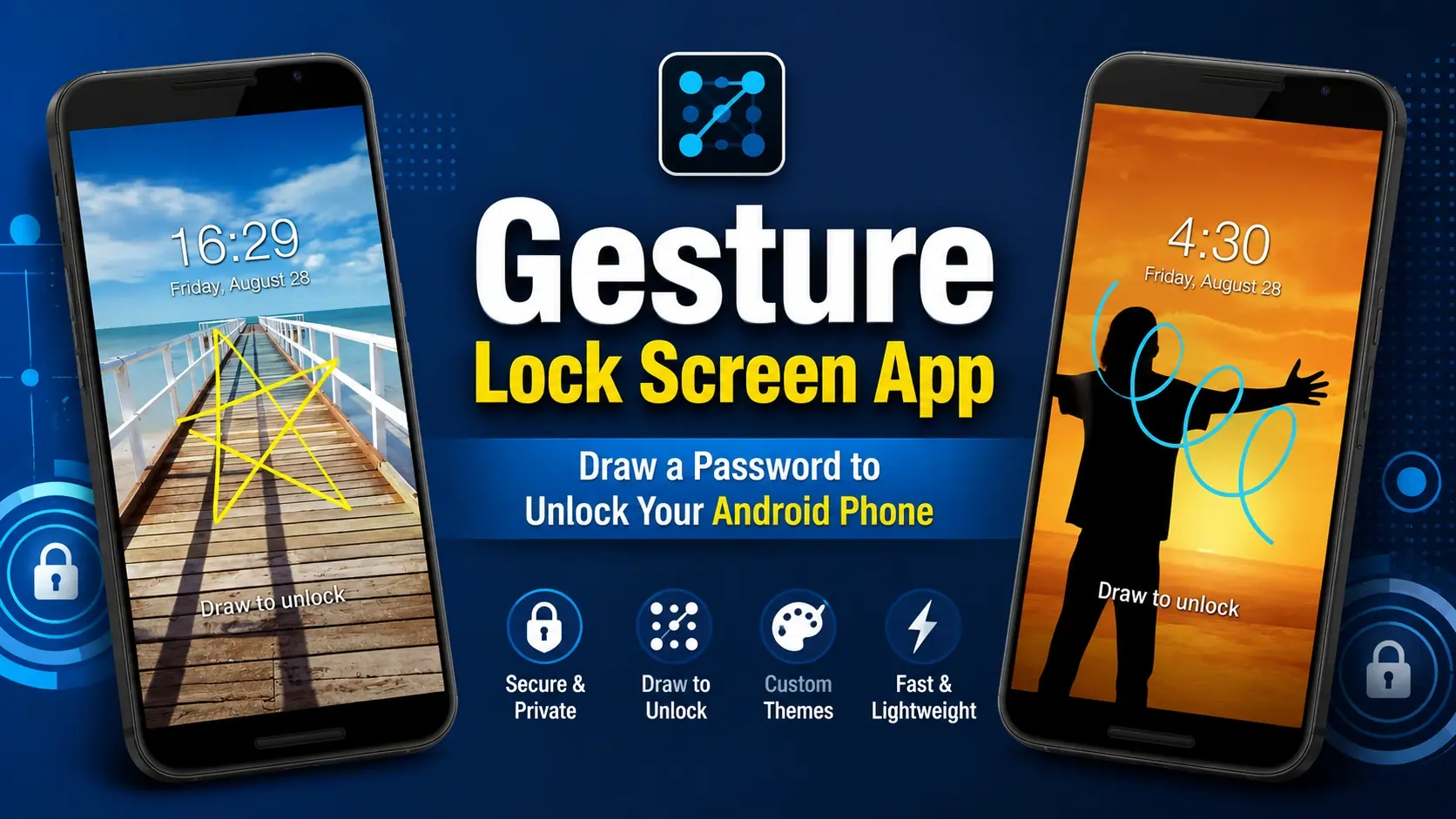
Tired of typing the same boring PIN every time you unlock your phone? Or maybe your pattern lock feels too predictable? There is a much cooler and more secure way to lock your Android phone — and it involves drawing anything you want on your screen.
Yes, we are talking about the Gesture Lock Screen app. This app lets you draw a custom shape, letter, signature, or symbol on your phone screen to unlock it. No dots, no numbers — just your own hand gesture.
In this article, we will explain exactly what this app is, how it works, all its features, how to set it up, and why thousands of Android users prefer it over traditional locks.
What Is Gesture Lock Screen?
Gesture Lock Screen is a free Android app that replaces your standard lock screen with a custom drawing password system. Instead of swiping a pattern through nine dots or typing a PIN, you simply draw something on the blank screen — and your phone unlocks.
You can draw anything: your name, a star, a heart, the letter “A”, a simple line, or any shape that only you know. The app reads your drawing and matches it to the gesture you saved during setup. If it matches, the phone unlocks. If it does not, it stays locked.
This makes it one of the most personal and unique lock screen solutions available on Android right now.
Why Is Gesture Lock Different From Pattern Lock?
Most people confuse Gesture Lock with the standard Android pattern lock. They are very different.
Pattern lock forces you to connect dots in a 3×3 grid. There are limited combinations, and it leaves smudge marks on your screen that a person can trace. It is also very easy to watch someone else unlock their phone with a pattern.
Gesture Lock Screen has no grid, no dots, no boundaries. You draw on a completely blank canvas. Your gesture can be large, small, simple, or complex. Since there is no fixed grid, there are virtually unlimited possible gestures. Smudge marks are meaningless because the smudge covers the full screen. And it is nearly impossible for someone to replicate your exact drawing without knowing it.
This makes Gesture Lock significantly more secure than the traditional pattern lock in real-world use.
Key Features of Gesture Lock Screen
Here is a complete breakdown of what this app offers:
1. Fully Custom Drawing Password
You decide what your password looks like. Draw a letter from your name, your signature, a symbol, a simple shape, or anything unique to you. The app stores your drawing pattern and uses it to verify every unlock attempt.
2. Blank Canvas Unlocking
There are no dots, lines, or grids on the unlock screen. It is a clean blank space where you draw freely. This makes it impossible for others to guess your gesture just by watching your finger movement.
3. Custom Wallpaper for Lock Screen
You can set your own photo or wallpaper as the background of the gesture lock screen. This makes the lock screen look personal and attractive. Your favorite photo will show behind the drawing canvas.
4. Intruder Selfie Detection
This is one of the most impressive features. If someone enters the wrong gesture multiple times, the app automatically takes a photo using your front camera. The next time you unlock your phone, you can see exactly who tried to break into your device.
5. PIN Backup Option
If you ever forget your drawn gesture — which can happen — the app gives you a PIN backup option. During setup, you create a backup PIN. You can use this PIN to unlock your phone at any time, even if your gesture is completely forgotten.
6. Simple and Clean Interface
The app is designed for everyday users. You do not need any technical knowledge to set it up. The interface is minimal, easy to navigate, and loads quickly. Even someone using it for the first time will understand it within a few minutes.
7. Works on Most Android Phones
The app is compatible with a wide range of Android devices. Whether you use a budget phone or a mid-range one, Gesture Lock Screen works smoothly without draining battery or slowing down the device.
How to Set Up Gesture Lock Screen on Your Android Phone
Follow these steps to get it running:
Step 1 — Open the Google Play Store on your Android phone and search for “Gesture Lock Screen.” Download and install the app.
Step 2 — Open the app after installation. It will ask you to draw your gesture. Draw carefully on the blank screen. This will be your unlock password.
Step 3 — Draw the same gesture again to confirm it. Make sure both drawings match closely.
Step 4 — Set a backup PIN. This is very important. If you forget your drawing gesture later, this PIN will save you from getting locked out.
Step 5 — Grant the app the necessary permissions it asks for, including drawing over other apps and accessibility settings. These are required for the lock screen to work properly.
Step 6 — Set your preferred wallpaper for the lock screen background. You can choose any photo from your gallery.
Step 7 — Once setup is done, your phone is now protected with gesture lock. Every time you press the power button, the gesture screen will appear. Draw your password to unlock.
Who Should Use This App?
Gesture Lock Screen is perfect for:
People who are bored of using the same PIN or pattern lock every day and want something fresh and unique.
Those who want a more personalized phone security experience that feels like their own.
Users who share their phone environment with nosy colleagues or family members and want a lock that is harder to replicate or guess.
Anyone who wants to add extra fun and style to their daily phone usage without compromising security.
It is also great for kids and teens who enjoy customizing their devices and want a lock screen that stands out.
Is Gesture Lock Screen Safe to Use?
Yes, it is safe for general use. The app does not access your contacts, messages, or private data. The intruder selfie feature uses your front camera only when a wrong gesture is detected, and the photo is saved locally on your device.
That said, like any third-party lock screen app, you should always keep your backup PIN safe. If you forget both the gesture and the backup PIN, you may need to perform a factory reset on your phone to regain access. So write your PIN somewhere secure during setup.
Download Gesture Lock Screen
The app is available for free on the Google Play Store. Search for “Gesture Lock Screen” or look for the app by developer “qlocker.” It is a lightweight app with a small file size that installs quickly.
After installation, setup takes less than five minutes and your phone will have a completely new and unique unlock experience.
Final Thoughts
PIN locks are predictable. Pattern locks leave smudge marks. Fingerprint sensors sometimes fail in humid conditions. Gesture Lock Screen solves all of these problems with a simple but clever idea — let you draw your own password on a blank canvas.
It is fun to use, more secure than most people expect, fully customizable, and free to download. If you want your phone security to be as unique as you are, Gesture Lock Screen is worth trying right now.
Download it, set your own gesture, and never worry about someone guessing your lock again.
Yeh article ready hai for WordPress — plain text, short paragraphs, no HTML, no emojis, no separator lines. Seedha copy-paste kar lo. Title, headings sab included hain. Chahiye toh meta description bhi likh deta hoon.