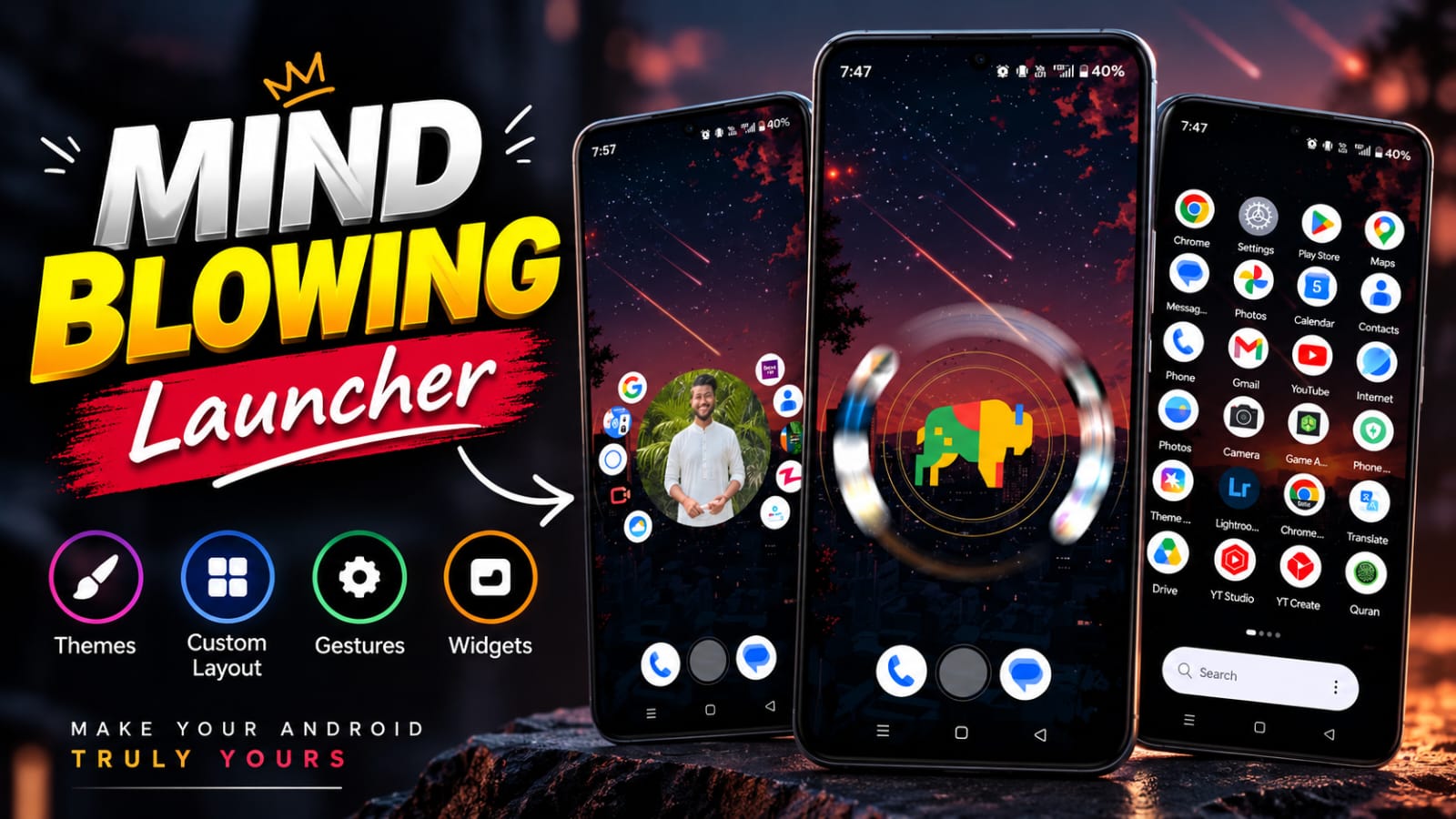
Nocebo is especially interesting for people who enjoy experimenting with their phone’s appearance and want more than a new wallpaper or icon pack. The launcher combines a spinning home-screen design with customization features such as a center sticker, app folders, widgets, gestures, and configurable interface behavior.
This guide explains what Nocebo Launcher is, how its unusual design works, what customization options it offers, how it compares with conventional launchers, and what you should consider before making it your default Android launcher.
What Is Nocebo Launcher?
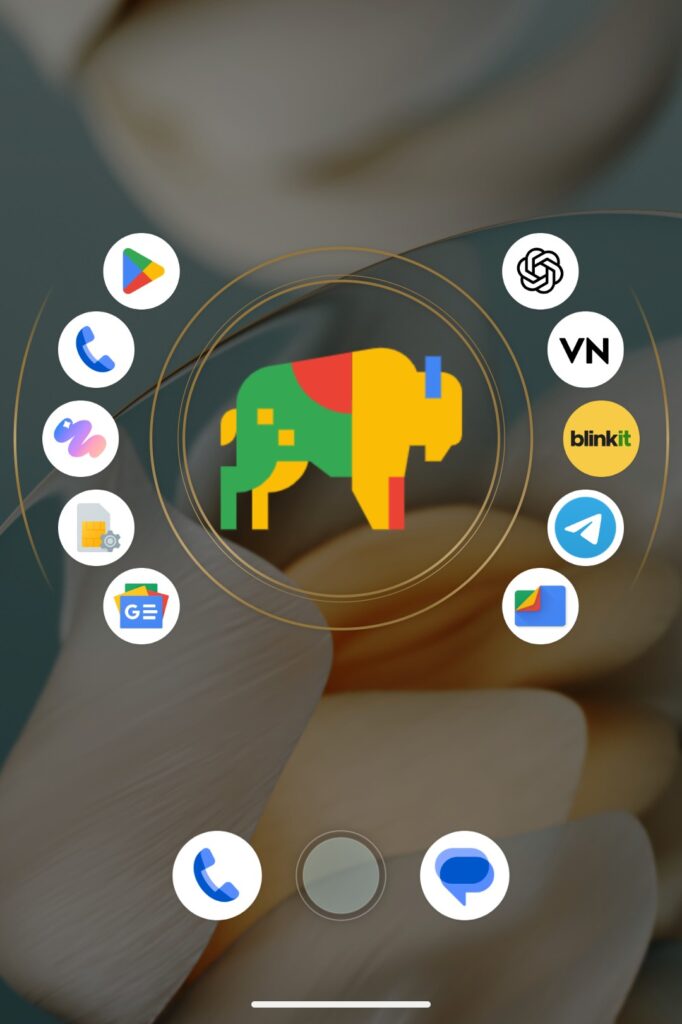
Nocebo Launcher is a third-party Android launcher that replaces the standard home-screen interface on a compatible Android phone. Instead of relying entirely on rows and columns, it introduces a spinning home-screen layout where applications can be arranged around a rotating interface.
The project originally began as a personal launcher experiment. According to the developer, development started around eight years before its public release, with the initial goal of creating an interface that felt comfortable on taller phones and worked well with one-handed use.
That background helps explain why Nocebo does not feel like another launcher built around the same traditional desktop concept. Its main idea is to make the home screen itself an interactive part of the phone experience.
How the spinning layout works
The central feature is a rotating wheel or spinner. Instead of simply swiping across static pages, you can interact with the rotating arrangement to reach applications.
The exact experience can change depending on settings such as animation style, speed, friction, and other interface behavior. This gives users room to create either a calmer setup or something much more animated.
What Makes Nocebo Launcher Different?
The biggest difference becomes obvious the moment you compare its home screen with a conventional Android launcher. Traditional launchers usually organize applications through fixed grids, docks, folders, and pages, while Nocebo puts its rotating interface at the center of the experience.
The spinning interface is Nocebo’s defining feature. It is not simply a visual effect placed over a normal launcher; it changes how users interact with their apps.
Center sticker customization
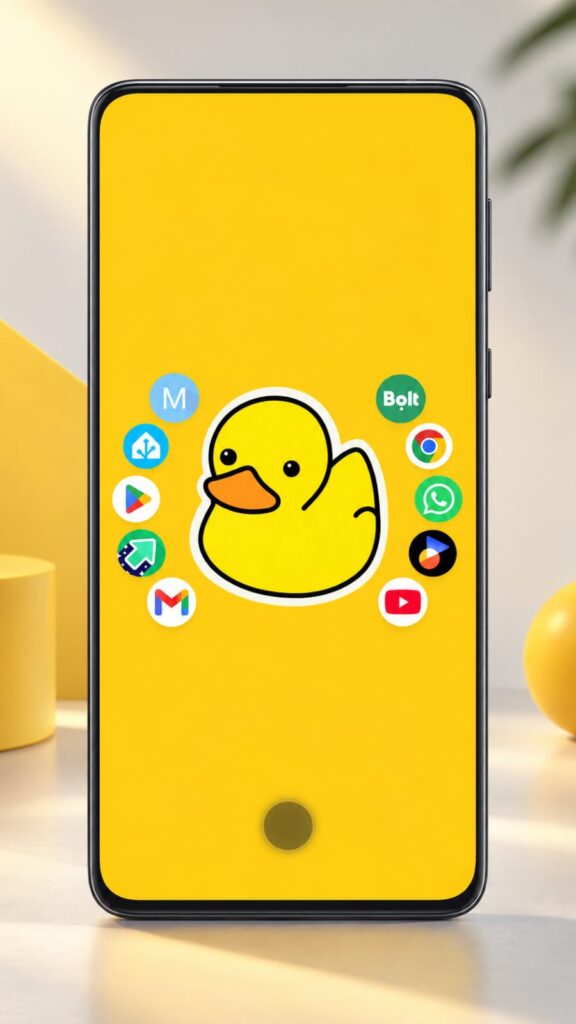
One of the more unusual visual features is the center sticker. The middle area of the spinner can be personalized, giving the home screen a recognizable visual focus.
This can be useful if you enjoy creating themed setups around a particular image, character, logo, or aesthetic. The developer has also described custom sticker creation as part of the experience, including the ability to work with images where the background can be removed.
Gestures and interaction
Nocebo also supports gesture-based controls. Its customizable joystick-style controls can be assigned different actions, giving users another way to access functions without filling the screen with buttons.
This can be particularly useful on large phones because frequently used actions can be placed within comfortable thumb reach.
Nocebo Launcher Customization and Theme Options
A launcher becomes much more useful when it lets you change more than wallpaper and icon size. Nocebo offers several controls that can be combined to create different home-screen styles.
Customization is one of the strongest reasons to try this launcher. Google Play lists features including custom center stickers, a dynamic app drawer, folders, widget integration, and extensive interface configuration.
Apps, folders, and widgets
The app drawer supports drag-and-drop organization and custom folders, allowing users to arrange applications according to their own workflow. Widgets can also be integrated into the launcher experience.
The developer has also discussed traditional home-screen pages for widgets and shortcuts, so users do not have to rely exclusively on the spinner for every part of their setup.
Icons, wallpaper, and visual style
Nocebo supports icon packs and individual custom icons, which means you can build a theme around matching icons, wallpaper, and the center sticker.
Wallpaper blur is another available customization option, while animated wallpapers can be supported on compatible devices. These features make it possible to create anything from a minimal home screen to a highly visual setup.
Nocebo Launcher vs Traditional Android Launchers
The difference between Nocebo and a conventional Android launcher is mainly about interaction rather than simply appearance.
| Feature | Nocebo Launcher | Traditional Launcher |
|---|---|---|
| Main layout | Rotating spinner | Usually grid-based |
| App organization | Spinner, drawer, folders | Grid, drawer, folders |
| Center customization | Custom sticker | Usually not a core feature |
| Gestures | Highly configurable | Depends on launcher |
| Widgets | Supported | Usually supported |
| Icon customization | Supported | Depends on launcher |
| Animation controls | Extensive | Varies |
| Interface style | Experimental and interactive | Familiar and conventional |
Also Read
There is no single launcher design that suits every Android user. Someone who wants a familiar interface may prefer a traditional launcher, while someone interested in a different interaction model may enjoy Nocebo.
The important difference is the learning curve. A conventional grid is immediately familiar, whereas Nocebo’s spinner requires some adjustment before its controls feel natural.
How to Set Up Nocebo Launcher
Getting started with Nocebo is similar to installing other third-party Android launchers, although the available settings can vary by Android version and phone manufacturer.
Step one: Install the launcher
Nocebo Launcher is available through Google Play. The current listing identifies it as a free Android personalization app and shows an update dated September 7, 2026.
After installation, set it as your preferred home application when Android presents the option.
Step two: Build your basic layout
Start with the applications you use most often. Place frequently accessed apps around the spinner and organize less-used applications into folders or the app drawer.
Avoid changing every setting at once. Learning the basic interaction first makes it easier to understand which customization options actually improve your daily use.
Step three: Customize the theme
Once the basic layout feels comfortable, experiment with your wallpaper, icon style, center sticker, animation behavior, and gestures.
For a clean setup, use a small number of visual elements and keep frequently used actions easy to reach. For a more expressive theme, matching the center sticker, wallpaper, and icons can create a stronger visual identity.
Is Nocebo Launcher Right for You?
Nocebo makes the most sense for Android users who enjoy customization and want an alternative to the standard home-screen experience.
It may appeal to you if you enjoy experimenting with Android themes, custom icons, gestures, wallpapers, and unusual interfaces. It can also be interesting if you prefer a home screen designed around thumb-friendly interaction.
However, users who want a completely familiar Android interface may need some time to adjust. The rotating design is intentionally different, so the first few hours can feel less predictable than using a standard grid.
Privacy is another point worth checking before installation. Google Play currently states that the developer declares no data collected and no data shared with third parties, while also explaining that optional AccessibilityService and Device Administrator permissions can be used for selected functions.
As with any third-party launcher, review the permissions on your own device and enable optional services only when you need their associated features.
Frequently Asked Questions
What is Nocebo Launcher?
Nocebo Launcher is a third-party Android home-screen replacement built around a rotating spinner-style interface. It provides customization options for apps, folders, widgets, gestures, icons, animations, and visual elements.
How does Nocebo Launcher work?
Nocebo uses a rotating home-screen layout instead of depending entirely on the traditional Android icon grid. Users can interact with the spinner and customize its behavior, appearance, and organization.
Can I customize the Nocebo Launcher theme?
Yes. Nocebo supports several visual customization options, including center stickers, icon packs, individual icons, wallpaper settings, and animation controls. These options can be combined to create different Android home-screen styles.
Is Nocebo Launcher free?
The Google Play listing currently presents Nocebo Launcher as a free application. Its developer has also described the project as free and without third-party analytics or cloud telemetry.
Which Android phones support Nocebo Launcher?
Nocebo is an Android launcher, but the exact experience can vary depending on your phone model, Android version, and manufacturer software. Features involving gestures, widgets, accessibility services, or device administration may also behave differently across devices.
Does Nocebo Launcher support widgets?
Yes. Google Play lists widget integration, and the developer has described support for widgets and traditional home-screen pages for widgets and shortcuts.
Why is Nocebo different from a normal launcher?
Its main difference is the rotating spinner interface. Instead of treating the home screen as a mostly static grid of icons, Nocebo makes movement and interaction a central part of the design.
When should you use Nocebo Launcher?
Try Nocebo if you want a customizable Android launcher that feels visually and mechanically different from a standard home screen. If you prefer familiar grids and minimal changes to the default Android experience, a conventional launcher may require less adjustment.
Conclusion
Nocebo Launcher offers a genuinely different approach to Android home-screen customization, combining a rotating layout with themes, custom stickers, icons, folders, widgets, gestures, and animation controls. It is particularly interesting for users who want their Android interface to feel more personal than a standard grid.
If you enjoy experimenting with your phone’s appearance and want to try a different kind of Android Launcher, install Nocebo from Google Play and build a setup that matches your own style.