Typing a PIN every time you unlock your phone can feel repetitive. A Draw To Unlock Lockscreen gives Android users another style: instead of entering a traditional code, you draw a custom shape, letter, number, symbol, or signature on the screen.
This type of lock screen is usually provided by a third-party app rather than Android’s standard security settings. Some apps available on Google Play advertise features such as custom gestures, invisible drawing, recovery PINs, wallpapers, animations, and intruder alerts.
This guide explains how gesture lock screens work, how to set one up, how they compare with standard Android locks, and what you should check before giving a lock-screen app access to your device.
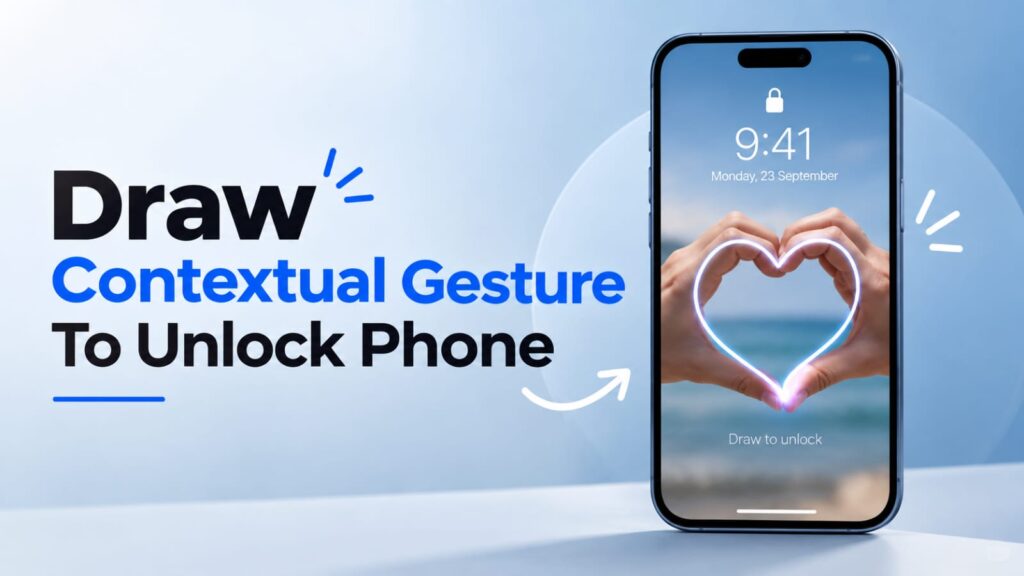
What Is Draw To Unlock Lockscreen?
A Draw To Unlock Lockscreen is a lock-screen method where you create a specific gesture and repeat it to unlock your phone. The gesture can be something simple, such as a letter, number, symbol, shape, or even a signature.
Android itself already supports pattern unlocking, where you draw a sequence across a pattern grid. However, gesture lock apps can offer a different experience by allowing free-form drawings instead of the standard grid-based pattern.
How Is It Different From a Normal Pattern?
A standard Android pattern uses a predefined grid. Your finger connects selected points in a particular sequence.
A custom gesture lock can instead allow you to draw directly on the screen. For example, you might create a single-stroke letter or a small personal symbol.
The main difference is flexibility. The appearance may also be customized with different wallpapers, colors, clocks, and unlock animations, depending on the app.
How Draw To Unlock Lockscreen Apps Work
Most gesture lock apps work by creating their own lock-screen interface. When the phone reaches the lock state, the app displays its custom screen and waits for the gesture you previously saved.
Some Google Play listings currently advertise support for single-stroke and multiple-stroke gestures, invisible gesture lines, custom wallpapers, recovery PINs, and additional lock-screen customization.
Creating a Custom Gesture
The basic process usually looks like this:
- Install a compatible gesture lock app from Google Play.
- Open the app and grant the permissions it requires.
- Create your custom gesture.
- Draw the same gesture again to confirm it.
- Set a backup PIN or another recovery method if available.
- Preview the lock screen and enable it.
The exact options depend on the particular app and Android version.
Why a Backup PIN Matters
A gesture may be easy for you to remember, but it can also become difficult to reproduce if you draw it inconsistently.
A recovery PIN gives you another way to regain access if the gesture fails. Android’s own screen-lock system also uses established fallback methods such as PINs, patterns, and passwords.
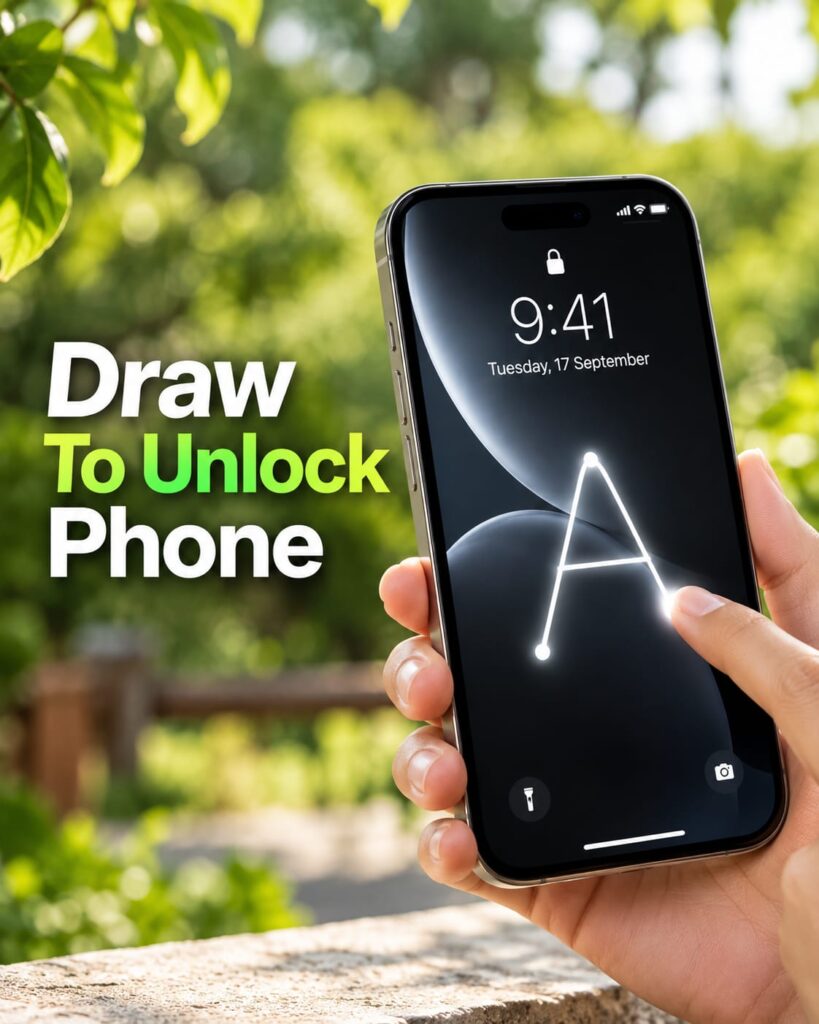
How to Set Up a Gesture Lock Screen on Android
Before installing an app, check whether your phone already provides the type of lock you need. Android’s standard settings generally include PIN, pattern, password, and, on supported devices, fingerprint or face unlocking.
Step One: Choose a Reputable App
Search Google Play for terms such as “gesture lock screen” or “draw to unlock.” Check the developer information, recent updates, reviews, permissions, and Data safety section before installing.
Some gesture lock applications use Android’s Accessibility API to provide their custom lock-screen functionality, so permissions deserve careful attention.
Step Two: Create Your Gesture
Choose something you can reproduce consistently. A simple letter or symbol may be easier to remember than a complicated drawing.
Avoid using an obvious gesture that someone watching you could easily copy.
Step Three: Set a Recovery Method
If the app offers a recovery PIN, create one and keep it private. Test the recovery method before depending on the gesture as your everyday unlock method.
Step Four: Test the Lock
Lock your phone several times and test the gesture under normal conditions. Check whether it works after restarting the device and whether your chosen recovery option remains available.
Draw To Unlock Lockscreen vs PIN and Pattern Lock
A custom gesture and a standard Android lock serve similar purposes, but they work differently.
| Feature | Gesture Lock App | Android Pattern | PIN |
|---|---|---|---|
| Custom drawing | Usually yes | No | No |
| Free-form gesture | Often yes | No | No |
| Built into Android | Usually no | Yes | Yes |
| Backup method | Depends on app | Built in | Not applicable |
| Custom themes | Often available | Limited | Limited |
| Fingerprint support | Device-dependent | Device-dependent | Device-dependent |
Android recommends a six-digit PIN or longer for stronger protection, while a strong password provides another security option. Google also recommends using biometrics where supported, while retaining a strong underlying screen lock.
Which Lock Should You Use?
There is no single option that fits every person. A custom gesture may appeal to users who want a personalized lock screen, while a standard PIN, password, pattern, or biometric method may be preferable when you want to rely on Android’s built-in security system.
A third-party app should not be assumed to provide stronger device protection simply because the unlock method looks unusual.
Customize Your Gesture Lock Screen
One reason gesture lock apps attract attention is customization. Instead of showing the standard lock screen, many apps let you change the visual appearance.
Wallpaper and Theme Options
Some apps let you select a photo from your gallery or choose an online wallpaper. One current Google Play listing also advertises millions of wallpaper choices through an integrated wallpaper source.
You can use a personal photo, minimalist background, nature image, or dark wallpaper depending on your preferred style.
Launcher and Lock Screen Design
A launcher changes the home-screen experience, while a lock-screen app focuses on the screen shown before access to the phone.
These are separate functions, although some customization apps may combine several features. If you already use a custom launcher, check whether the gesture lock app works properly with it.
Live Wallpapers and Animations
Some gesture lock apps also provide animated backgrounds, clocks, sounds, and unlock animations. These features mainly affect appearance rather than the fundamental strength of the authentication method.
Keeping animations simple can also make the lock screen feel faster and less distracting.
Security and Privacy Things to Check
A lock-screen app sits in a sensitive position because it interacts with the process used to access your phone. That makes privacy and permissions important.
Check permissions before enabling the app. If an application requests Accessibility access, read its explanation and understand why it needs that permission. Some gesture lock apps explicitly state that AccessibilityService is required to detect screen events and display the custom lock screen.
Also check the developer’s Data safety information on Google Play. These declarations can change, so review the current listing rather than relying on an old screenshot or recommendation.
Keep Android’s Main Security Method Strong
A third-party lock screen should not replace good security habits. Google recommends a strong PIN, password, or pattern and supports biometric authentication on compatible devices.
Android also uses the device’s screen lock for certain security functions and data protection. Google specifically recommends using a PIN, pattern, or password when setting up the screen lock.
Common Problems With Gesture Locks
Gesture lock apps can sometimes behave differently across phone brands and Android versions. A manufacturer may change how lock screens, background services, permissions, or battery restrictions work.
Gesture Is Not Recognized
Try creating a gesture that is easy to reproduce. Very detailed drawings can become difficult when your finger starts from a slightly different position.
Lock Screen Stops Appearing
Check whether Android’s battery restrictions or permissions have affected the app. If the problem continues, check the app’s current support information and Android compatibility.
You Forgot the Gesture
Use the recovery PIN or password if the app provides one. If there is no recovery method, avoid experimenting with random gestures because you could make access problems worse.
Frequently Asked Questions
What is a Draw To Unlock Lockscreen?
It is a lock-screen system that allows you to draw a custom gesture to unlock an Android phone. Depending on the app, the gesture may be a letter, number, symbol, signature, or free-form drawing.
How do I set Draw To Unlock Lockscreen on Android?
You normally need a compatible third-party gesture lock app from Google Play. Create your gesture, confirm it, configure a recovery method, and then enable the custom lock screen.
Can I draw a letter to unlock my phone?
Yes, some gesture lock apps specifically support letters, numbers, symbols, and signatures as custom gestures. The exact options depend on the app you install.
Is Draw To Unlock Lockscreen more secure than a PIN?
Not automatically. A gesture can be less predictable visually, but the actual security depends on how the app handles authentication, permissions, recovery methods, and device integration.
Which is better, gesture lock or Android pattern lock?
They serve different purposes. Android’s pattern lock is built into the operating system, while a gesture lock app can provide more visual customization and free-form drawing options.
Can I use a custom wallpaper with a gesture lock?
Many gesture lock apps support custom wallpapers, including images selected from your phone’s gallery. Some also offer additional themes, clocks, sounds, and unlock animations.
Does a gesture lock app require special permissions?
Some do. For example, certain gesture lock apps state that they use Android’s AccessibilityService to detect screen events and provide their custom lock-screen functionality.
When should I use a backup PIN?
Use a backup PIN whenever the gesture lock app provides one. It gives you another way to access the device if the gesture is forgotten or fails to register correctly.
Conclusion
A Draw To Unlock Lockscreen can give your Android phone a more personalized way to unlock, especially if you prefer drawing a letter, symbol, signature, or custom gesture instead of using a conventional pattern. At the same time, Android’s built-in PIN, password, pattern, and biometric options remain important security choices.
If you want to try a gesture-based lock screen, choose a reputable app, review its permissions and privacy information, create a memorable gesture, and always configure a reliable recovery method before making it your everyday lock screen.